 Timeline Visualizer
What is Timeline.json? Export, download and use your Google Maps history
Timeline.json is the location-history file your phone exports from Google Maps Timeline. Here is what is inside, how to create and download your own copy on Android or iPhone, and how to open it in a viewer or turn it into a travel video.
What the file actually is
Timeline.json is a JSON file, a plain-text format for structured data that any text editor can open. It is the copy Google Maps creates when you export your Timeline from the phone that recorded it, so it holds the visits, activities and travel paths your own device has stored, each with a timestamp and coordinates.
The structure depends on when the export was made. Current Android and iPhone exports are an array of entries: visits, activities and timeline paths. Older exports wrap the same entries in a list called semanticSegments, and some exports only carry raw location signals listed as rawSignals, without reconstructed journeys. This site reads whatever the file holds and shows only the data that is actually in it.
How to create it on your phone
The file is created on your phone, and nothing on this site can generate it for you. On Android, open the Settings app and go to Location → Location services → Timeline → Export Timeline data, then confirm with Continue. On iPhone, open Google Maps, tap your profile picture → Settings → Location & Privacy → Export Timeline data, and save the result to Files.
Google Maps owns these screens, so the exact menu names and their positions vary by app version and phone language. If your screen looks different, follow the walkthrough at /how-to-export-google-timeline/ or Google’s own Timeline Help, then come back with the file.
Where the download goes and what it is called
On Android, the export is usually written as Timeline.json into the folder you choose, often Downloads. Wait for the Export complete message before leaving Google Maps, then open the Files app and check that the file is not 0 KB.
On iPhone, the same export passes through the iOS share sheet; saving it to Files gives you location-history.json. A phone set to another language may write a translated file name on either system, and that does not matter here: the site reads the JSON whatever it is called, and on a computer you can open the same file from Downloads.
If the result is tiny or empty, or a picker hands you a 0-byte copy from a Recent or cloud shortcut, the checklist at /blog/timeline-json-empty-file-fix/ walks through every cause.
What you can do with your own copy
Open it in the Timeline Viewer on this site to inspect days, points and routes before you rely on it. The file is read in your browser and is never uploaded, so the copy on your device stays the only copy.
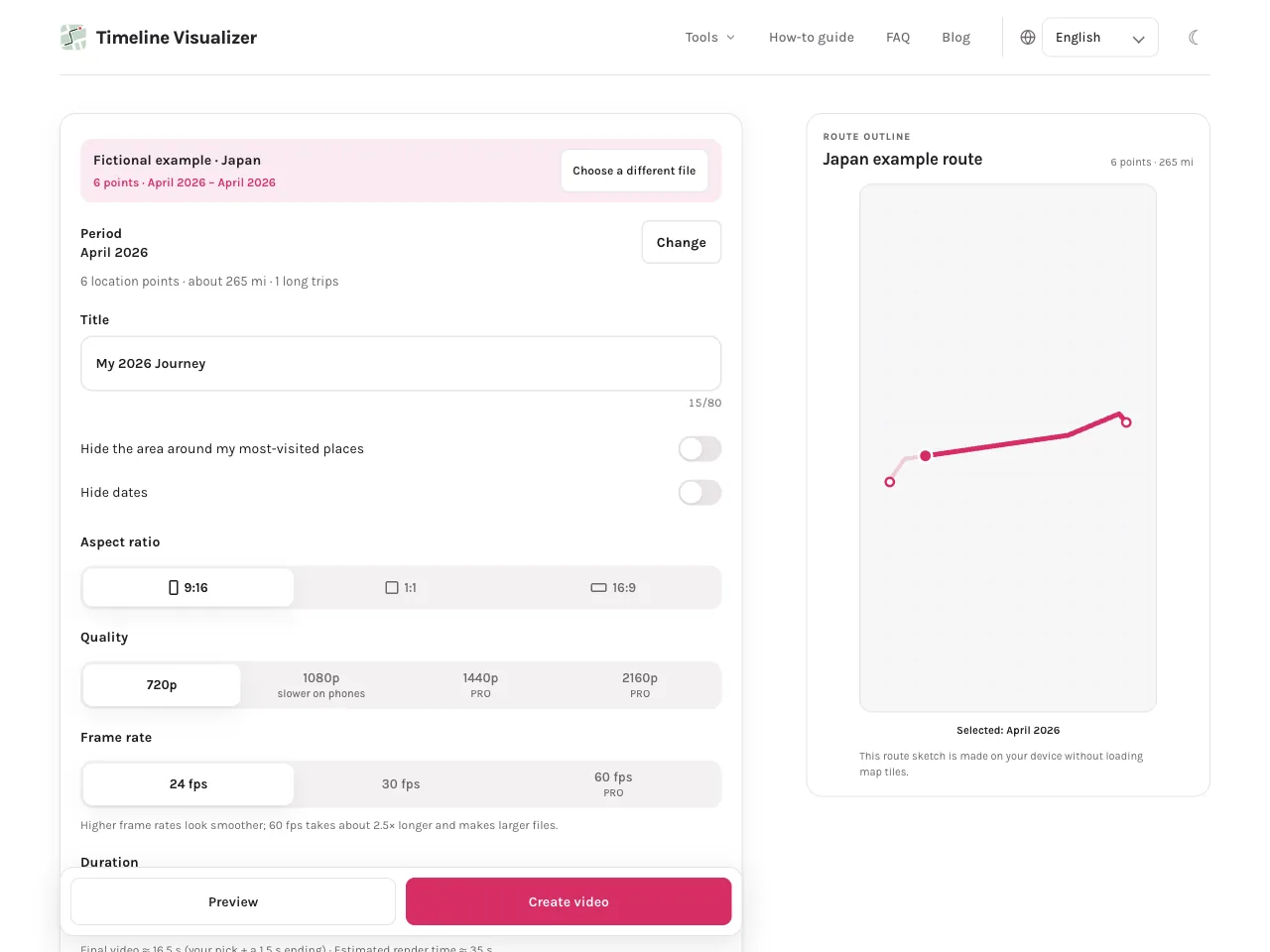
Choose the same file on the home page to turn the dates you select into an animated route video. You can also load it into the visited countries or states map to mark the regions its coordinates fall in.
Map tiles load only after you accept the map notice. The video tool requests OpenFreeMap by default and CARTO when a key is configured; the Timeline Viewer requests CARTO tiles. The visited maps use bundled boundaries and make no map-service request, and no map request ever includes your file.
Timeline.json vs a Google Takeout archive
A Google Takeout archive is not the same thing. Takeout packs your Google data into a ZIP with a different structure, and it usually does not contain your recent on-device Timeline at all. Older Takeout exports that use timelineObjects or locations are not a format this site reads, and renaming a ZIP to JSON does not convert it.
For anything on this site, export from the phone as described above. One export can cover a long period, and each new export is a fresh snapshot of the history that is on the phone at that moment.
Export, save and open Timeline.json
- Export the file on the phone that has the history. On Android: Settings app → Location → Location services → Timeline → Export Timeline data → Continue. On iPhone: Google Maps → profile picture → Settings → Location & Privacy → Export Timeline data → save to Files. Menu names may vary by app version.
- Save the JSON somewhere easy to find and wait for the Export complete message. Android writes Timeline.json, usually into Downloads; iPhone saves location-history.json through the share sheet into Files. Check in your file manager that the size is not 0 KB.
- Open the file in the Timeline Viewer on this site and check the days, points and routes it contains. The file is read in the browser and is never uploaded.
- When the copy looks right, choose the same file on the home page to build an animated route video from the dates you select, or load it into the visited countries or states map.
Questions
What is a timeline json file?
It is the JSON copy of your Google Maps Timeline created on your phone through Export Timeline data. It holds recorded visits, activities and travel paths with timestamps and coordinates, and this site reads it locally without uploading it.
How do I create Timeline.json in Google Maps?
Not on the web: the phone creates it. On Android, use the Settings app: Location → Location services → Timeline → Export Timeline data → Continue. On iPhone, open Google Maps → profile picture → Settings → Location & Privacy → Export Timeline data, then save it to Files. Menu names may vary by app version.
How do I download Google Timeline JSON?
The export itself is the download. The phone writes the file where you choose: usually Timeline.json in Downloads on Android, or location-history.json in Files on iPhone. Wait for the Export complete message, then open that folder and check the size.
How do I choose Timeline.json in the tool?
Select Choose Timeline file on the home page or in the Timeline Viewer and pick the JSON from Downloads or Files. If a Recent or cloud shortcut produces an empty file, choose the same file directly from the folder it is stored in.
Try it in your browser
Timeline JSON, selected photos and optional audio are read on your device to create your video. This site does not receive those file contents.