 Timeline Visualizer
Installing the original Android app: what to check
Find the upstream release and distinguish it from this independent website.
Use the original project’s release page
Follow the source-project link on this site to GitHub and read the release notes before choosing an APK. Check the stated Android requirement and the file attached to that release. If Android asks to allow installation from your browser or file manager, enable it only for a file you have verified and turn the permission off afterwards.
Try the browser workflow first if installation is unnecessary
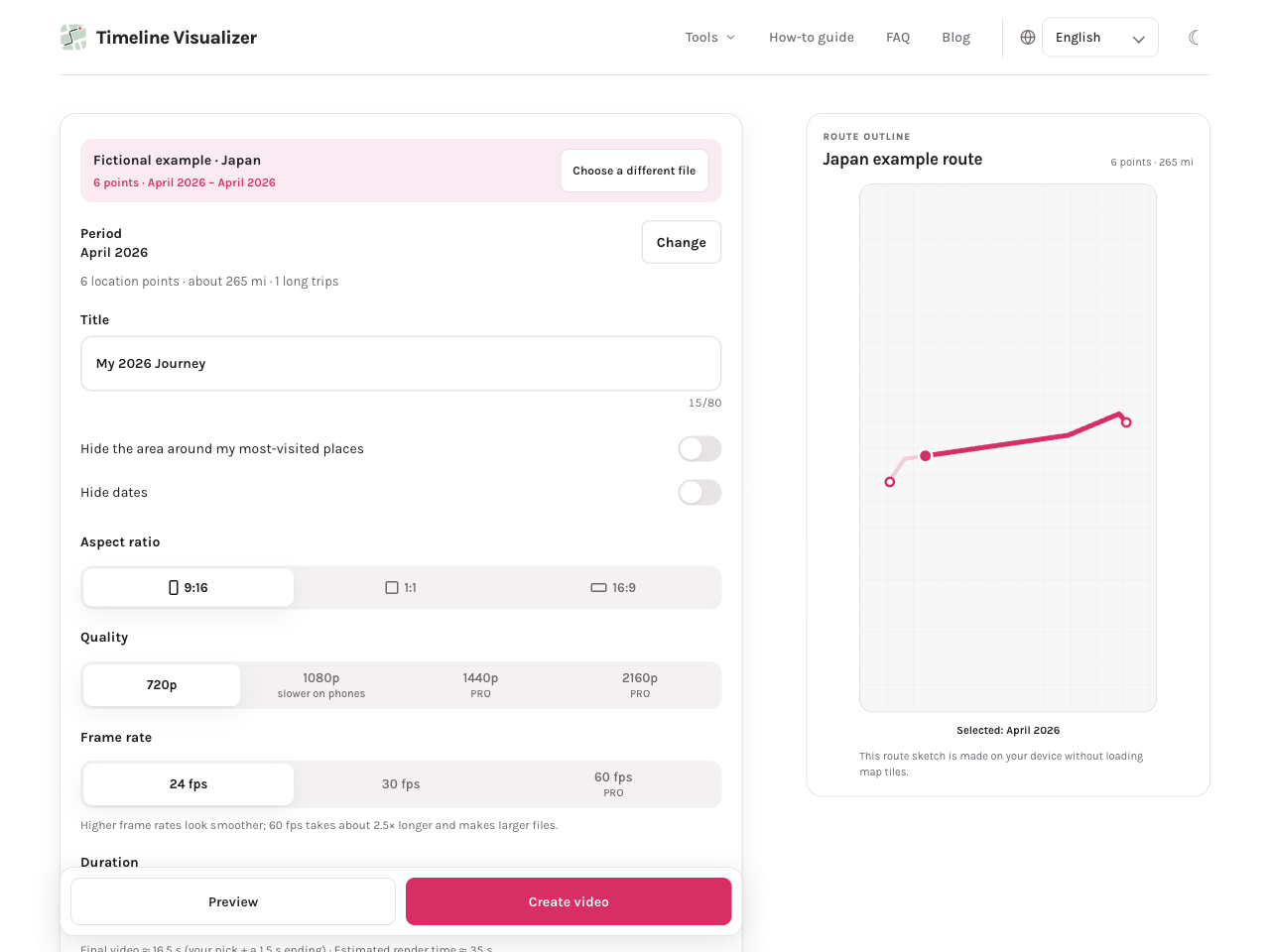
This site can read a supported Timeline file without installing an APK. Use the Japan sample to check the editor on your device before selecting personal data. The upstream app and this website have separate release cycles; a web feature, Pro setting or purchase does not imply the same feature or entitlement exists in the Android app.
Install and try the upstream Android release
- Open the original project’s GitHub Releases link below. Read the requirements and download the APK attached to the release you chose; version numbers and sizes change, so check the release itself.
- Open the downloaded APK on Android. If prompted, allow installation for the browser or file app you used, return to the installer and follow its confirmation. Do not dismiss a specific security alert without understanding it.
- Open the app, choose a copy of your Timeline export and follow the controls in that release to select a trip and video style. Start with a short route and check the saved video.
- If installation fails, check device compatibility, the download and the release notes. For updates, return to the same upstream release page. An APK cannot be installed on iPhone; use a compatible browser for this website instead.
What to check
Compare device support, file access and export settings before choosing a workflow. Site-specific Pro controls belong to this independent web app.
- Confirm that you are looking at the original Android app or this independently operated website.
- Compare file support, available video settings and device requirements before choosing where to create the video.
Try it in your browser
Timeline JSON, selected photos and optional audio are read on your device to create your video. This site does not receive those file contents.